
RampMates on your phone
For: Pilots · Hangar admins · Mechanics
pilotadminmechanicRampMates runs in your phone’s web browser at the same address as on a computer – there’s nothing to install. On a phone, and on most tablets held upright, the sidebar is replaced by a tab bar along the bottom of the screen.
The tab bar
Section titled “The tab bar”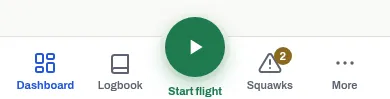
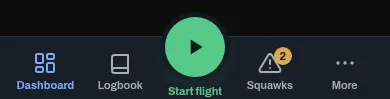
- Dashboard and Logbook – the aircraft you’re on, and its flights.
- Start flight, the raised button in the middle. While a flight is open on this aircraft it turns into End flight, which opens the form to close it out. See Start and close a flight.
- Squawks, with the number of open squawks on this aircraft when there are any.
- More – everything else.
If you’re a mechanic, the middle button is Log MX instead: it opens Log maintenance.
The tab bar gets out of the way while the keyboard is up, and comes back when you’re done typing.
The More tab
Section titled “The More tab”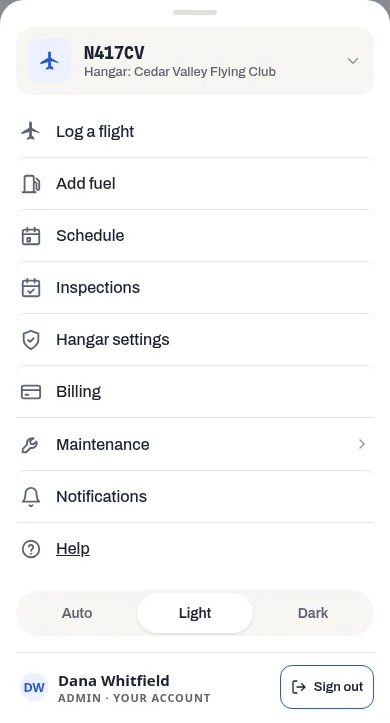
From the top:
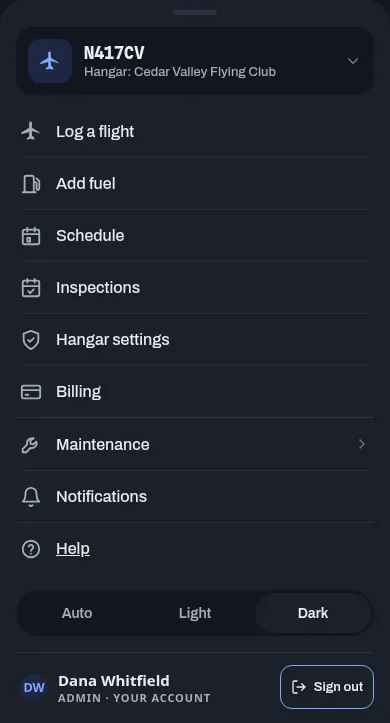
- The aircraft card – the tail number you’re on and its hangar. Press it to switch aircraft or hangar. See Belonging to more than one hangar.
- Log a flight and Add fuel (not for a mechanic), Schedule and Inspections. A hangar admin also has Hangar settings and Billing; a member has Billing when their hangar bills its members through RampMates.
- Maintenance – press it to show Log maintenance, Oil and Engine.
- Notifications and Help. Help opens this guide at the page for the screen you’re on, or at its front page when there isn’t one.
- Auto, Light and Dark – see Light and dark mode.
- Your name and your role in this hangar – press it to open Your account, where you change your name, email, password and photo. See Change your name, email, password or photo.
- Sign out.
To close it, drag it down by the handle at its top, press the handle, or press outside the sheet.
Switch aircraft
Section titled “Switch aircraft”Press the tail number at the top of the Dashboard (it has a small arrow beside it), or the aircraft card at the top of More. Both open the same list of your hangars and their aircraft. See Belonging to more than one hangar.
Add RampMates to your home screen
Section titled “Add RampMates to your home screen”An icon on your home screen opens RampMates full screen, without the browser’s address bar.
iPhone or iPad (Safari)
- Open RampMates in Safari and sign in.
- Press the Share button, then Add to Home Screen.
- Press Add.
Android (Chrome)
- Open RampMates in Chrome and sign in.
- Press the ⋮ menu, then Add to Home screen (on some phones it says Install app).
- Confirm.
What’s different on a phone
Section titled “What’s different on a phone”- Log a flight, Log maintenance and Oil open as full pages rather than pop-up windows.
- Schedule has its own phone layout. See Book an aircraft.