
Inspections
For: Hangar admins · Mechanics · Pilots
adminmechanicpilotInspections shows every recurring inspection an aircraft needs – the annual, a 100-hour, the ELT or transponder check – when each was last done and when it’s next due. Each aircraft has its own list, with its own intervals.


Open Inspections from the sidebar (on a phone, from More). The page groups the list by status:
- Overdue – past its due date or hours.
- Needs a record – no completion has been logged yet, so RampMates can’t tell when it’s due. Log the last time it was done to start the clock.
- Coming up – due within 60 days, or 10 hobbs hours for an hours-based one.
- Current – nothing to do yet.
- Not tracked – an admin has turned it off for this aircraft.
A calendar inspection counts days (days left); an hours inspection counts hobbs hours from the reading when it was last done (hrs left). The dashboard’s Inspections card shows the same countdown for each one.
Log a completed inspection
Section titled “Log a completed inspection”Anyone with access to the aircraft can log a completion – the mechanic who signed it off, or a pilot recording it.
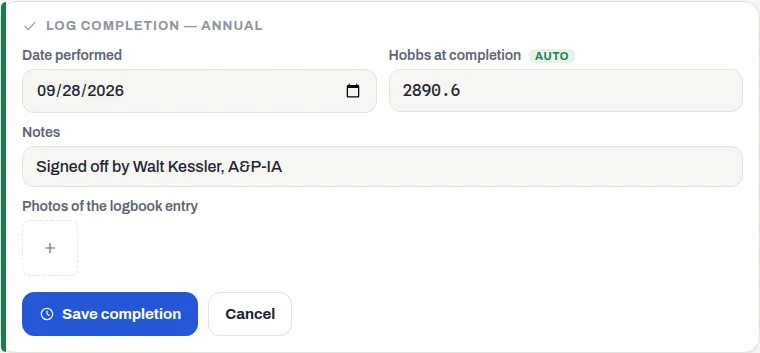
- On the inspection, press Log completion.
- Set Date performed.
- Check Hobbs at completion. It starts at the aircraft’s current hobbs; change it if the work was done earlier. An hours-based inspection needs it.
- Add Notes, such as who signed it off.
- Optionally add Photos of the logbook entry.
- Press Save completion.
The next due date or hours is worked out from the latest completion. Logging an inspection that was done a while ago is fine; if it still leaves the inspection overdue, it stays Overdue.
Reminders and the overdue squawk
Section titled “Reminders and the overdue squawk”RampMates watches each tracked inspection that has at least one completion logged:
- When it’s Coming up, RampMates opens a Pending squawk saying so, and sends a Maintenance and inspections notification to everyone with access to the aircraft.
- Once it’s overdue, RampMates opens an Immediate squawk, which shows the aircraft as grounded on the Squawks page, and notifies everyone again.
The overdue squawk can’t be resolved by hand. Logging the completed inspection closes its squawk automatically. See Report and resolve squawks.
RampMates checks every inspection whenever someone opens the aircraft in the app, and again whenever a flight on it is logged or closed. An inspection under Needs a record or Not tracked never opens a squawk.
Correct or remove a completion
Section titled “Correct or remove a completion”- On the inspection, press History.
- On the entry, press Edit, fix the date, hobbs or notes, and press Save correction – or press Delete, then Delete again to confirm.
Deleting an entry also deletes its photos, and the next due date is worked out from the entry before it. A mechanic or an admin can change any entry; a pilot can change only the ones they logged.
Add or change an inspection (admins)
Section titled “Add or change an inspection (admins)”- Press New type at the top of the page.
- Enter a Name and, optionally, a Description / regulatory citation such as “Required by 14 CFR 91.171”. A 14 CFR citation shows as a chip on the inspection.
- Choose the Interval type: Calendar (in Months) or Hobbs (in Hours), and enter the interval.
- Press Save inspection type.
- Press Log completion on it to record the last time it was done.
The new inspection is added to this aircraft only. Add it to each aircraft that needs it.
To change one, open its menu (⋯) and select Edit inspection type. You can rename it, change its description or interval, or clear Tracked for this aircraft to stop tracking it, then press Save. The interval type can’t be changed; add a new inspection instead.
If something goes wrong
Section titled “If something goes wrong”“This inspection type has logged records and can’t be deleted – disable it instead.” – edit the inspection and clear Tracked for this aircraft.
There’s no Edit or Delete on an entry – a pilot can change only the entries they logged. Ask the person who logged it, a mechanic, or a hangar admin.