
Supplies and fuel cards
For: Hangar admins
adminTwo short lists on Hangar settings save your members typing – and keep the same oil from being spelled three different ways in the records. Both are shared by every aircraft in the hangar.
Supplies
Section titled “Supplies”The oils, lubes and other consumables your hangar uses. Oil supplies are offered as the oil type when someone logs an oil change, and when they log maintenance or resolve a squawk that asks for one. A maintenance task type can also have a field that picks from this list.
- Open Hangar settings and choose the Supplies tab. On a phone, press More, then Hangar settings.
- Under Add a supply, press Oil, Lube or Other.
- Type the name exactly as you want it recorded, such as
Aeroshell 15W-50, and any notes. - Press Add supply.
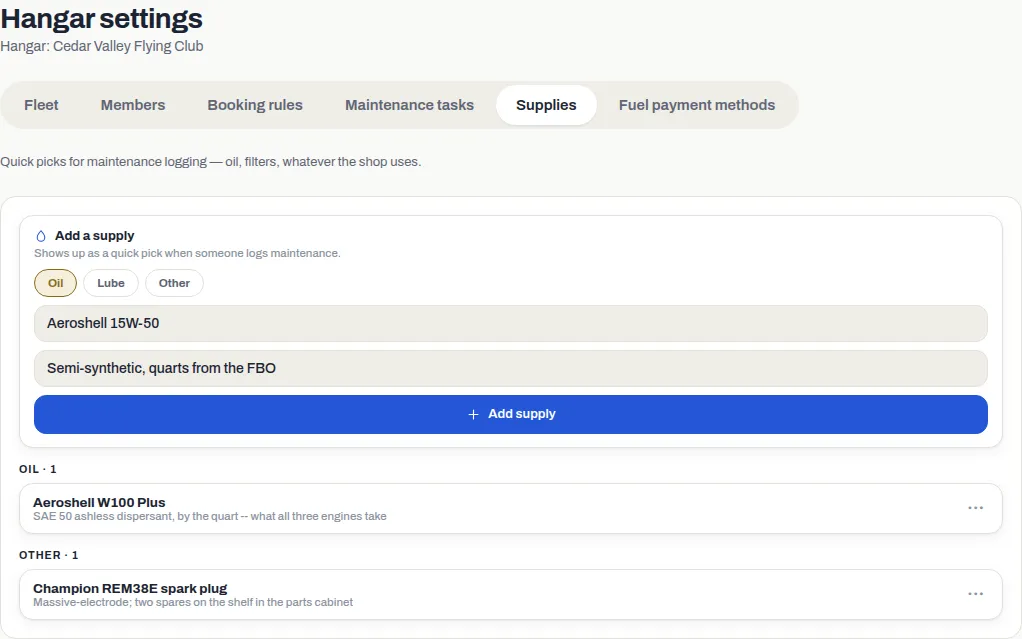
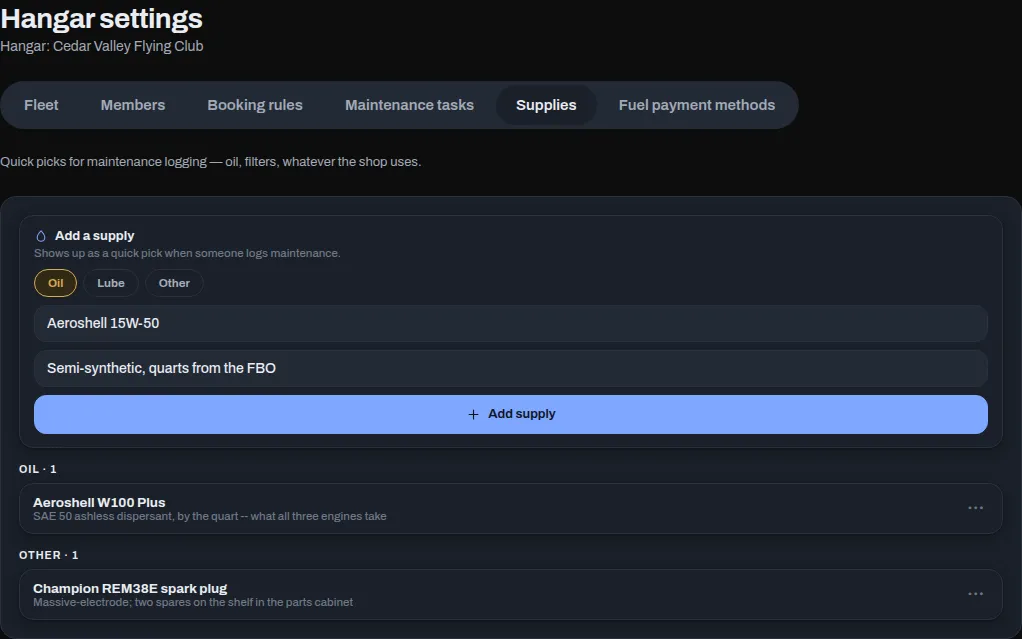
To change or remove one, press ⋯ on its row and select Edit or Remove. Removing a supply doesn’t change any record that already names it; it just stops being offered.
Without any oil supplies, the oil type is simply typed by hand – nothing is blocked. See Log an oil change and Log maintenance.
Fuel payment methods
Section titled “Fuel payment methods”The cards and accounts your hangar buys fuel on. Members choose one as the payment method when they add a fuel purchase, and if you give a card its last four digits, a receipt photo showing those digits picks the card automatically.
- Open Hangar settings and choose the Fuel payment methods tab.
- Under Add a payment method, type a name, such as
Club card. - For a card, type its last four digits in Last 4.
- Press Add payment method.
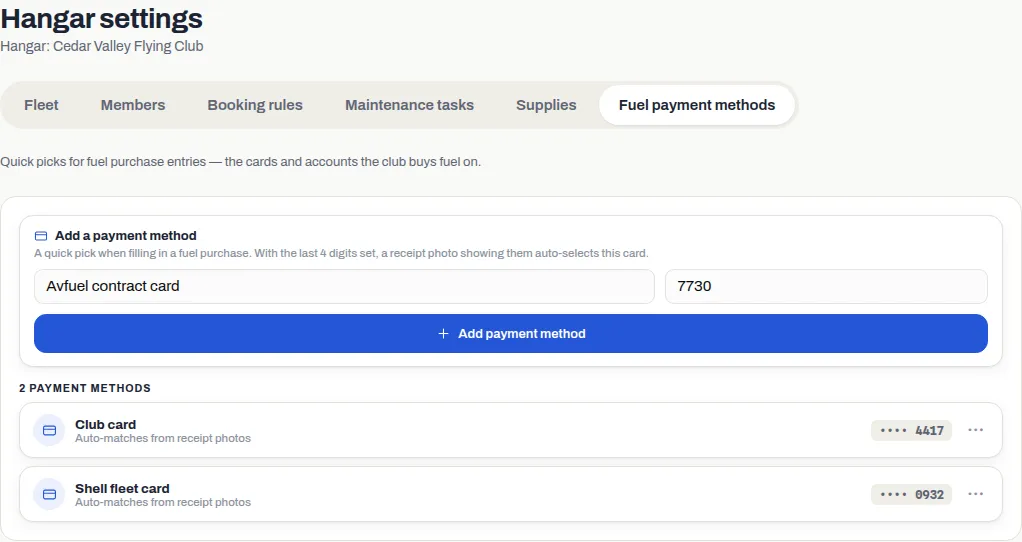
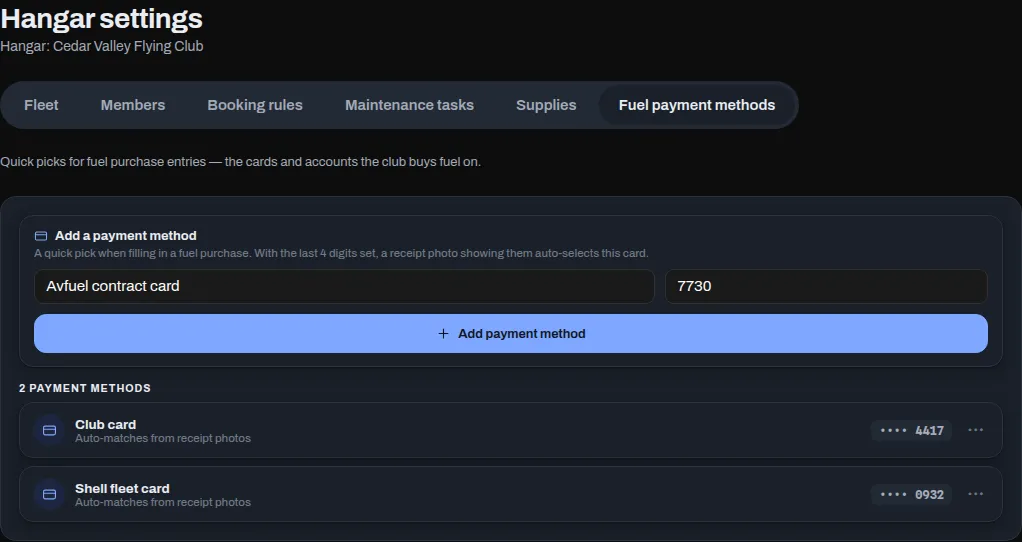
A method with its last four digits shows Auto-matches from receipt photos; one without shows No last-4 on file — receipts won’t auto-match. See Fuel and receipts.
To change or remove one, press ⋯ on its row and select Edit or Remove.
If something goes wrong
Section titled “If something goes wrong”- “This payment method is used by … fuel purchases and can’t be deleted.”
– fuel purchases already name it. Leave it, or rename it with Edit (for
example to
Old club card) so nobody picks it by mistake. - A receipt didn’t pick the card. Check the card has Last 4 set. If two payment methods have the same last four digits, neither is picked – the member chooses.
- Adding a payment method fails. Give it a name, and in Last 4 enter all four digits or leave it blank – the box takes digits only, and fewer than four is refused.