
Change or cancel a booking
For: Pilots · Hangar admins
pilotadminYou can change or cancel your own bookings until they start. A hangar admin can change or cancel anyone’s.
Cancel
Section titled “Cancel”- On Schedule, press the booking.
- Press Cancel.
- The booking disappears and a message at the bottom says Canceled and the booking’s name, with an Undo button. Press Undo (or Ctrl+Z, ⌘Z on a Mac) to put it back. Undo only lasts a few seconds.
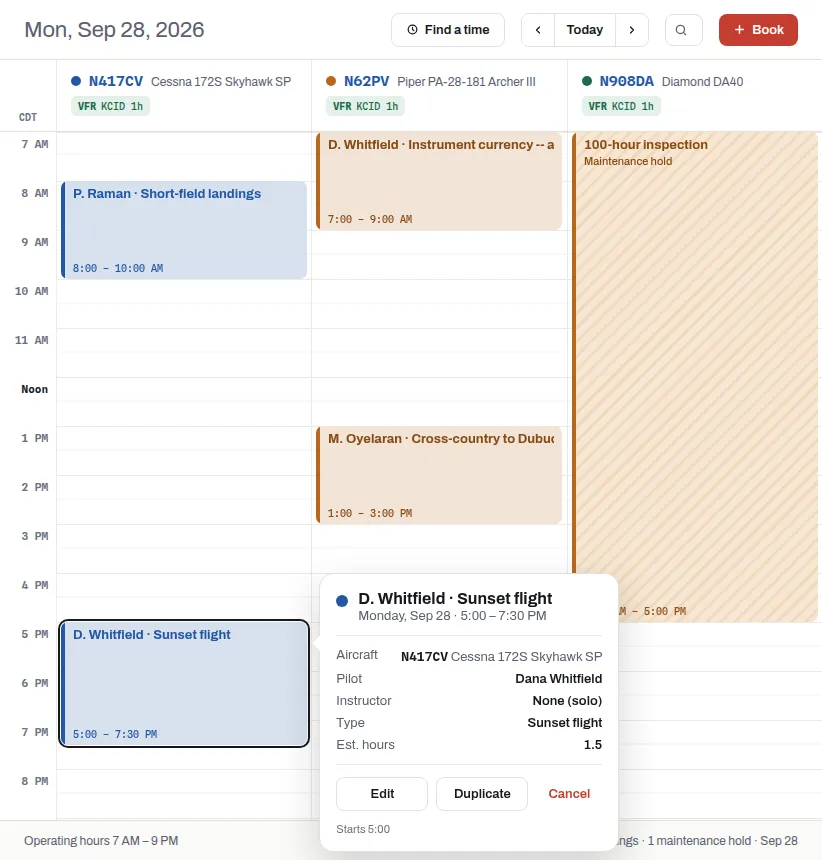
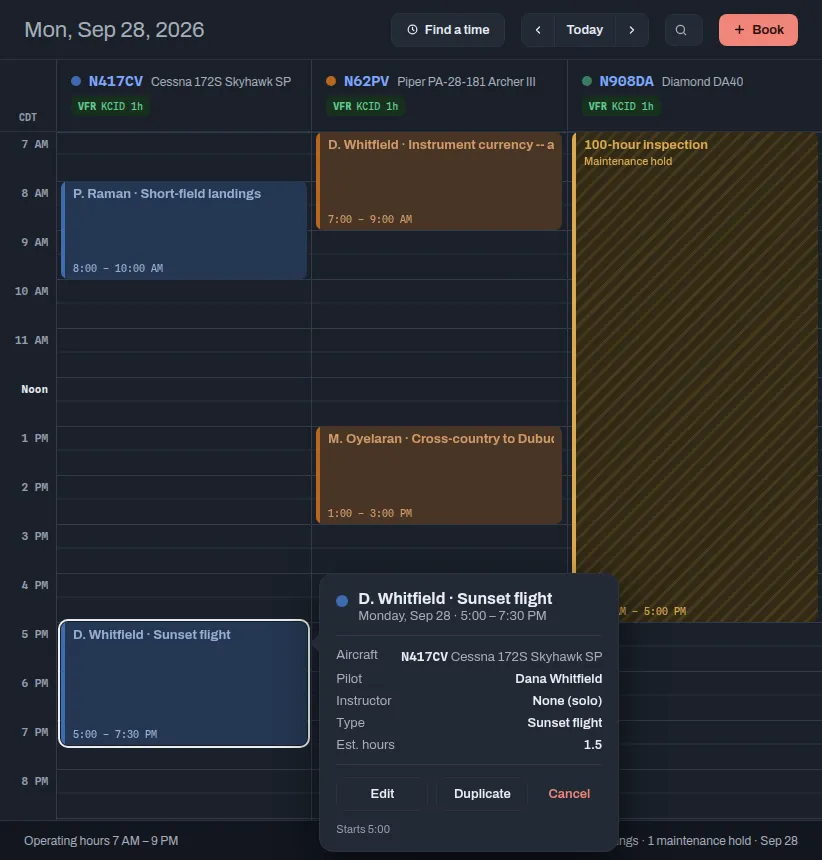
The pilot gets an email saying the booking was canceled, and the invitation it carries takes the booking off their calendar. If anyone is on standby for that time, the first person in line is booked into it at once. See Standby.
A cancel inside your hangar’s Late-cancel window before the start is recorded as a late cancel.
Change the time
Section titled “Change the time”On a computer, drag the booking up or down to move it, or drag its top or bottom edge to make it longer or shorter. A message shows the new time with Undo.
Or press the booking, press Edit, change Time, Type or Note, and press Save changes.
Move it to another aircraft
Section titled “Move it to another aircraft”On a computer, drag the booking sideways into another aircraft’s column. If the other aircraft is a different type, RampMates asks you to confirm. The message says Moved to and the new tail number, with Undo.
You can only drop a booking on an aircraft you’re allowed to fly. A booking that’s part of a repeat moves to another aircraft one date at a time.
Everything else about a booking
Section titled “Everything else about a booking”On a computer, double-click a booking to open its full details: its history, Add to calendar, Cancel booking with a reason everyone on the booking sees, and, for a repeating booking, This and later. See Book every week.
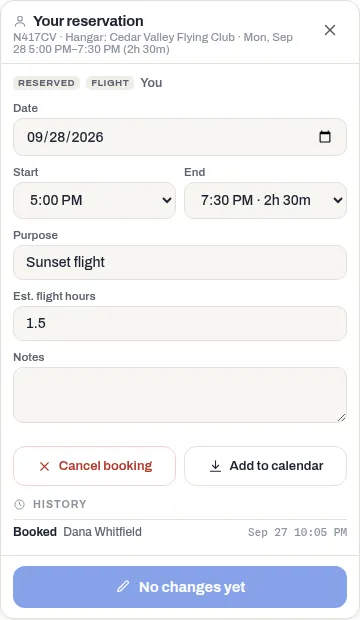
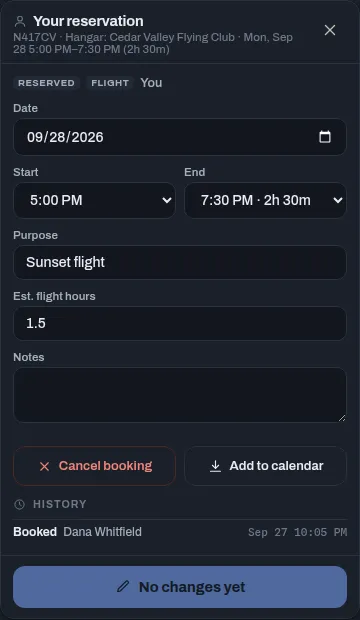
Duplicate starts a new booking on the same aircraft at the same times, the next day.
If something goes wrong
Section titled “If something goes wrong”- The booking shakes and springs back when you drop it. The message names what’s in the way, for example “N62PV is booked 10:00 AM – 12:30 PM”, “N908DA is in maintenance until 5:00 PM” or “That time has already passed”.
- “Check the flight in first”: the booking is checked out. Only a hangar admin can change it then, and only its end time and notes: double-click it on a computer and change End or Notes there.
- “This reservation has already started”: it started while you were editing. Once a booking starts, only a hangar admin can change it.
- Undo shows a refusal instead. Undo checks the booking rules again. If someone, or someone on standby, took the time after you canceled, it says “This overlaps another reservation.”; if the booking is now inside your hangar’s notice period, it says “Bookings need at least … hours’ notice.” Book another time, or ask a hangar admin.