
Log maintenance
For: Mechanics · Pilots · Hangar admins
mechanicpilotadminLog maintenance records work done on an aircraft: what was done, at what hobbs, any readings, notes and photos. The choices come from the task types a hangar admin sets up, plus Oil change, which is always there. Anyone with access to the aircraft can log maintenance: pilots, mechanics and admins.
Log maintenance
Section titled “Log maintenance”- On the dashboard, press Log MX. You can also open Maintenance, then Log maintenance, in the sidebar.
- Under What was done, press the task. Type in Search maintenance items… to narrow a long list.
- Under When, check Hobbs (it starts at the aircraft’s current hobbs) and Date performed.
- Fill in any Readings the task asks for. Paired readings show before and after, with the difference. For Oil change, choose the Oil type instead.
- Add Notes and, optionally, Add a photo.
- Under Resolve open squawks, tick any squawk this work fixed. The list only appears when the aircraft has open squawks.
- Press Log maintenance.
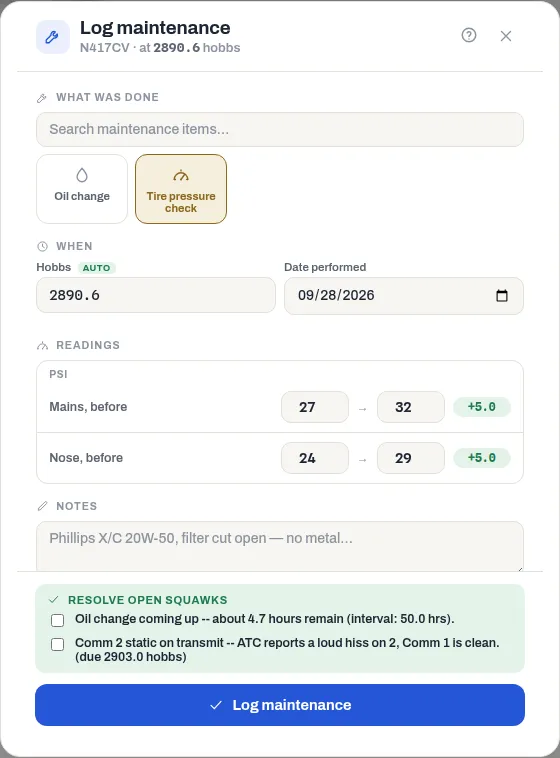
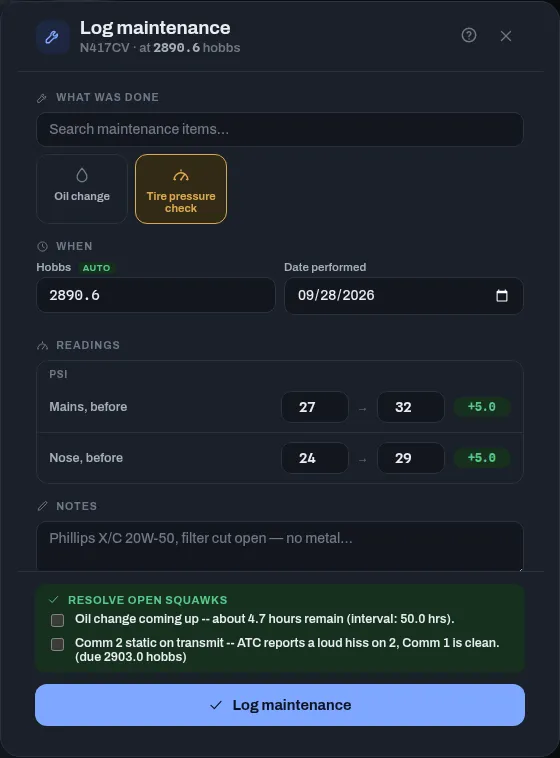
A task entry appears in the Logbook with the aircraft’s flights; the Maintenance filter there shows only maintenance. A squawk you ticked is resolved and shows Closed by and the task’s name.
In the Resolve open squawks list, oil squawks say resolves automatically when you log an oil change, and an overdue inspection’s squawk says closes when the inspection is logged – it can’t be ticked here. See Inspections.
Choosing Oil change records the same thing as the Oil changes screen, goes in the oil history rather than the Logbook, and resets the oil interval. See Log an oil change.
Set up task types (admins)
Section titled “Set up task types (admins)”Task types are shared by every aircraft in the hangar.
- Open Hangar settings, then the Maintenance tasks tab.
- Press New type.
- Enter a Name (for example “Tire Pressure Check/Fill”) and, optionally, a Description.
- For each field, enter a Field label and choose its kind:
- Number – a reading, with an optional unit such as PSI or qt.
- Text – free text.
- Select (options list) – a choice from options you type, separated by commas.
- Supply (from Supplies list) – a choice from the hangar’s supplies, from Any supply category or only Oil, Lube or Other.
- Tick Required for any field that must be filled in.
- Press Add field for more, then Save task type.
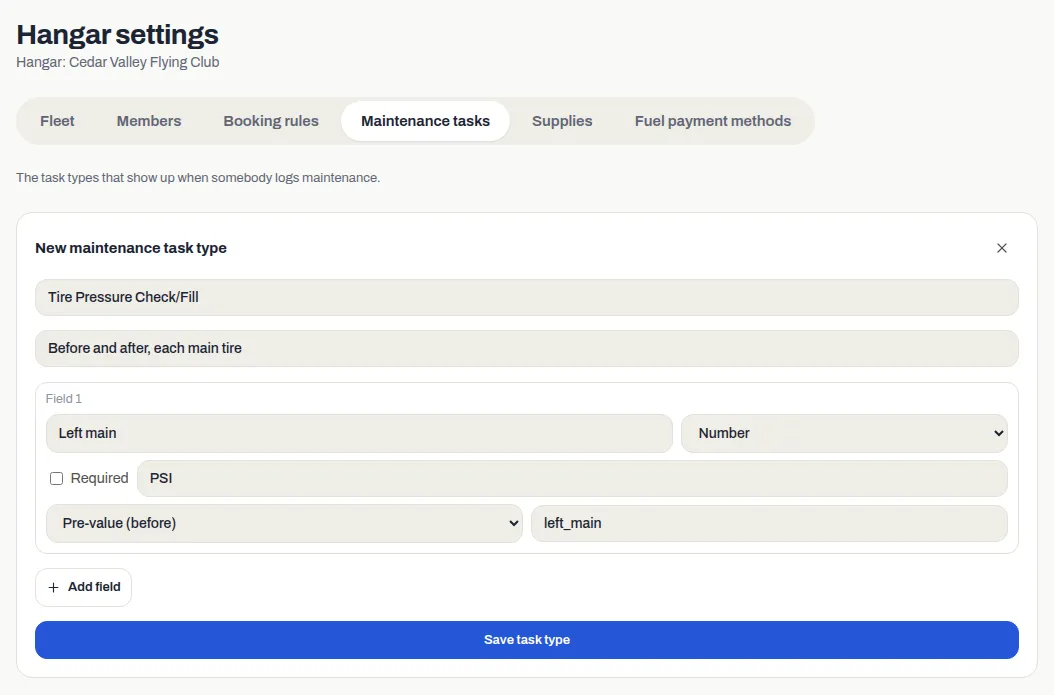
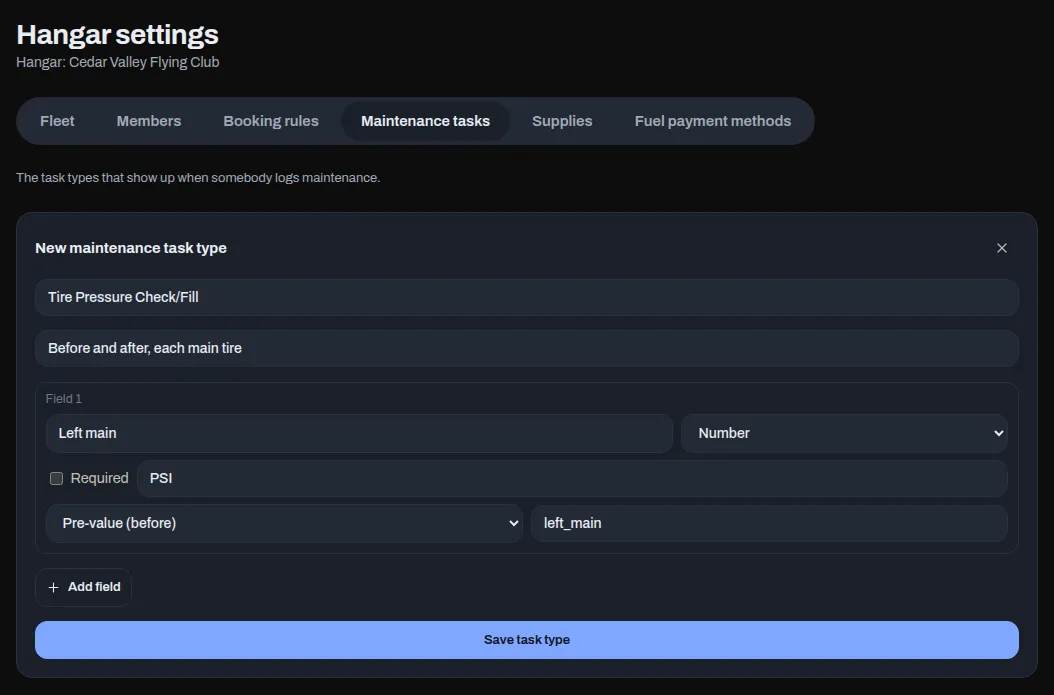
To record a before-and-after pair, such as tire pressure before and after filling, add two Number fields: set one to Pre-value (before) and the other to Post-value (after) – delta shown in Logbook, and give both the same pair key (for example “left_main”). The form shows them side by side with the difference.
To change a task type later, open its menu (⋯) and select Edit fields, or Delete type and then Delete to confirm.
If something goes wrong
Section titled “If something goes wrong”“Can’t remove a field that already has logged values – add a new field instead.” – a field that’s been used can be relabeled but not removed.
“This task type has logged entries and can’t be deleted.” – once anything has been logged with a task type, it stays.
“No matching maintenance item.” – nothing matches your search, or the hangar hasn’t set up that task. Ask a hangar admin to add it under Hangar settings, on the Maintenance tasks tab.
“Logged, but couldn’t resolve …: Pilots can only resolve squawks they reported” – the maintenance was logged, but a pilot can only close squawks they reported. Ask a mechanic or a hangar admin to resolve the rest, and don’t log the work again.