
Report and resolve squawks
For: Pilots · Hangar admins · Mechanics
pilotadminmechanicA squawk is RampMates’ word for something wrong with an aircraft. Report one as soon as you notice it, so the next pilot and the mechanic know. When it’s fixed, resolve it and say what was done.
Report a squawk
Section titled “Report a squawk”- Open Squawks. On a computer it’s in the sidebar; on a phone it’s in the tab bar at the bottom.
- Under Report a squawk, describe the problem in What needs attention?
- Under Fix by, choose how urgent it is:
- Immediate – don’t fly it until this is fixed. The page shows the aircraft status as grounded.
- As soon as able – it needs fixing soon, but the aircraft can fly.
- Whenever – worth fixing, no hurry. This is the default.
- Optionally press Add a photo.
- Press Add squawk.


RampMates records the aircraft’s hobbs reading with the squawk and tells everyone else with access to that aircraft, unless they’ve turned off New squawks in their notifications.
Anyone with access to the aircraft can report a squawk: pilots, mechanics and admins.
Found the problem while flying? When you log or close the flight, press Attach a squawk to this flight – see Log a flight you already flew and Start a flight and close it out.
See what’s open
Section titled “See what’s open”The Open, Resolved and All tabs filter the list, newest first. An open Immediate squawk always sorts to the top. The dashboard also shows the most urgent open squawk in a banner; press View squawk to come here.
Squawks marked Auto were opened by RampMates itself, for an oil change or an inspection that’s coming up or overdue. They say Opened by system.
To add a photo to an open squawk later, press Photo on its card.
Resolve a squawk
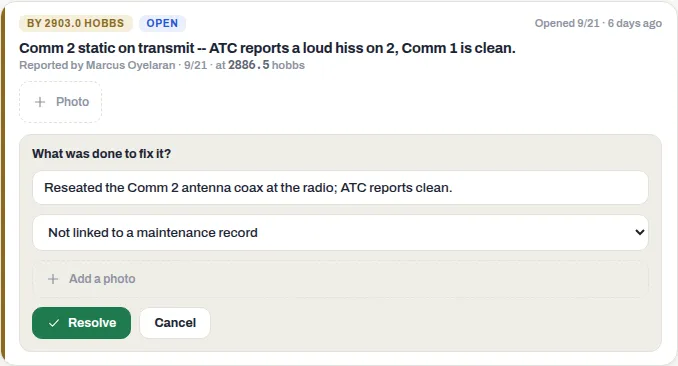
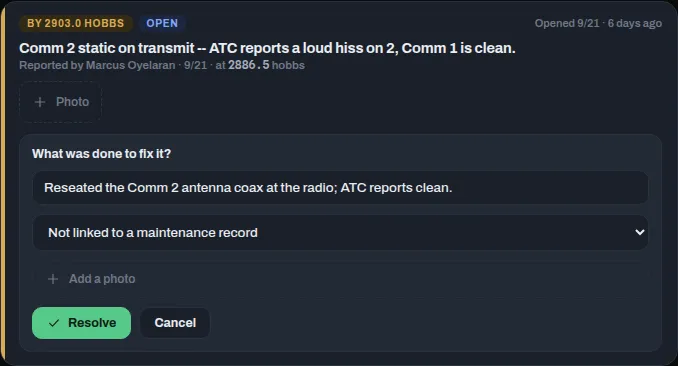
Section titled “Resolve a squawk”- On the squawk’s card, press Resolve.
- Under What was done to fix it?, describe the fix. It’s optional, but the next person will want to know.
- If the work was logged as maintenance, choose that entry from the list (it starts at Not linked to a maintenance record). The resolved squawk then shows Closed by and the task’s name.
- Optionally press Add a photo of the work.
- Press Resolve.
You can also close squawks while logging the work itself: Log maintenance lists every open squawk with a checkbox.
Two kinds of squawk resolve differently:
- Oil change squawks have Log oil change & resolve instead of Resolve. Enter the hobbs, choose the oil type, and press Log oil change & resolve. RampMates logs the oil change, dated today, and logging an oil change closes the squawk. See Log an oil change.
- Overdue inspection squawks can’t be resolved by hand. The card explains why and has a Log the inspection button instead; logging the completed inspection closes the squawk. See Inspections.
Resolving a squawk tells everyone else with access to the aircraft, the same way reporting one does.
Who can resolve what
Section titled “Who can resolve what”| Role | Can resolve |
|---|---|
| Pilot | Only squawks they reported |
| Mechanic | Any squawk |
| Admin | Any squawk |
If something goes wrong
Section titled “If something goes wrong”“Pilots can only resolve squawks they reported” – a pilot pressed Resolve on someone else’s squawk. Ask a mechanic or a hangar admin to close it.
“Ticket is already resolved” after Log oil change & resolve – the oil change was logged and the squawk is already closed. Reload the page to see it. Don’t press the button again: each press logs another oil change. If one got logged twice, delete the extra entry – see Correct or delete an oil change.
“Squawk added, but … failed to upload: Unsupported file type … Only photos are allowed.” – the squawk was saved, but the file wasn’t a photo RampMates takes (JPEG, PNG, WebP or HEIC). Add one in one of those formats with Photo on the card.
You can’t see an aircraft’s squawks at all – you may not have access to that aircraft. See I can’t see an aircraft.