
Book every week
For: Pilots · Hangar admins
pilotadminrecurring · repeat · series · weekly booking · standing booking · every week · regular slot
A repeat books the same aircraft at the same local time on every date you pick. Each date is its own booking, so you can move or cancel one without touching the others.
The Repeat option is in the New reservation panel, which you reach from Find a time:
- On Schedule, press Find a time, choose How long, and press Find openings. See Find a time.
- Press Book on an opening for the aircraft you want.
- In New reservation, set Date, Start and End to your first flight, and add a Purpose if you like.
- Under Repeat, press Daily or Weekly.
- Set Every (how many days or weeks apart) and Until (the last date; it’s included). For Weekly, pick the days under On these days.
- Read the sentence under the fields, for example “Every week on Sat until 2026-11-14.”, then press Book the repeat.
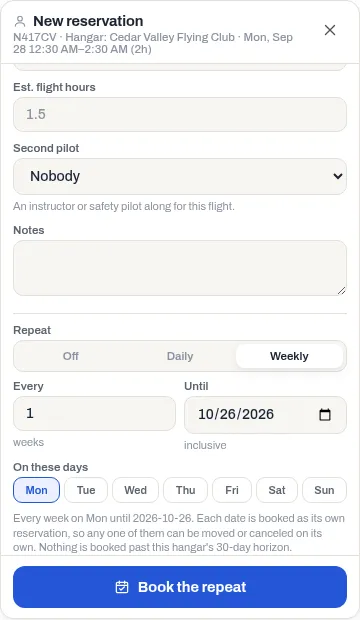
You get one confirmation email with every date in it as calendar invitations.
A repeat holds at most 52 dates, and never goes past how far ahead your hangar lets you book. Dates beyond either limit are simply left off.
Change or cancel the rest of a repeat
Section titled “Change or cancel the rest of a repeat”- On a computer, double-click one of the bookings in the repeat.
- Under One of a repeating set, press This and later.
- Change the times or details and press Save this and later, or press Cancel booking, give a reason, and press Cancel this and later.
This and later changes that date and every later date in the repeat that hasn’t been flown yet. Moved times shift every date by the same amount. To change just one date, press it and use Edit or Cancel as usual. See Change or cancel a booking.
If something goes wrong
Section titled “If something goes wrong”- “2 of those dates aren’t available” (or however many), with the date and the reason for each. Nothing has been booked yet. Press Book the rest to book every other date and leave those out. When every reason can be overridden, a hangar admin can instead fill in Why you’re booking past those rules and press Override and book.
- “Changed 5 of 6 bookings in that repeat.” Some later dates couldn’t move. The panel lists them and why; they keep their old times.
- You want the whole repeat on another aircraft. Drag each date into the other aircraft’s column one at a time.