
Set the booking rules
For: Hangar admins
adminbooking rules · schedule settings · limits · notice · no-show · late cancel · reminder · slot size
The booking rules apply to every aircraft in the hangar. When and where each aircraft can be booked (its timezone, hours of operation, home airport and twilight-only setting) is set on the aircraft itself, in Aircraft settings.
- Open Hangar settings and choose the Booking rules tab.
- Change the rules you want.
- Press Save booking rules.
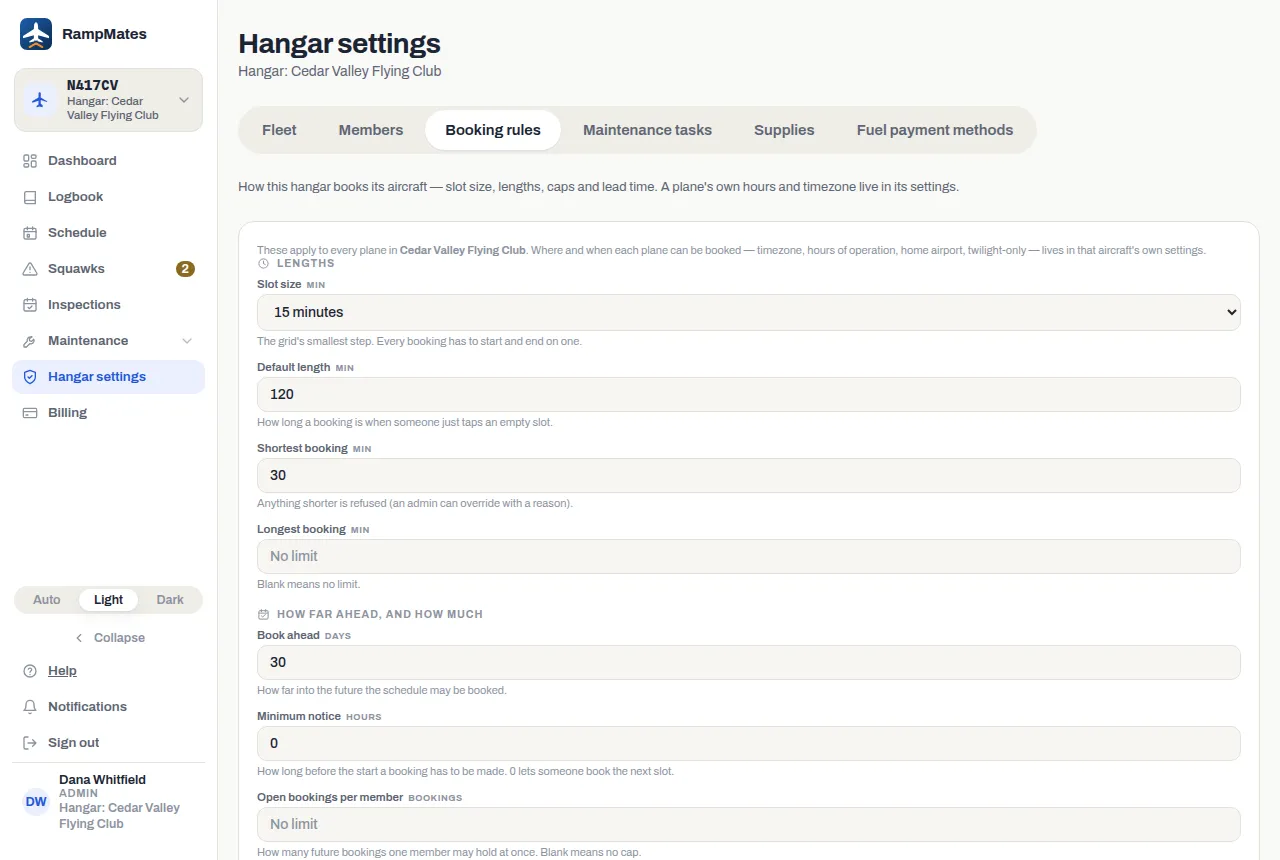
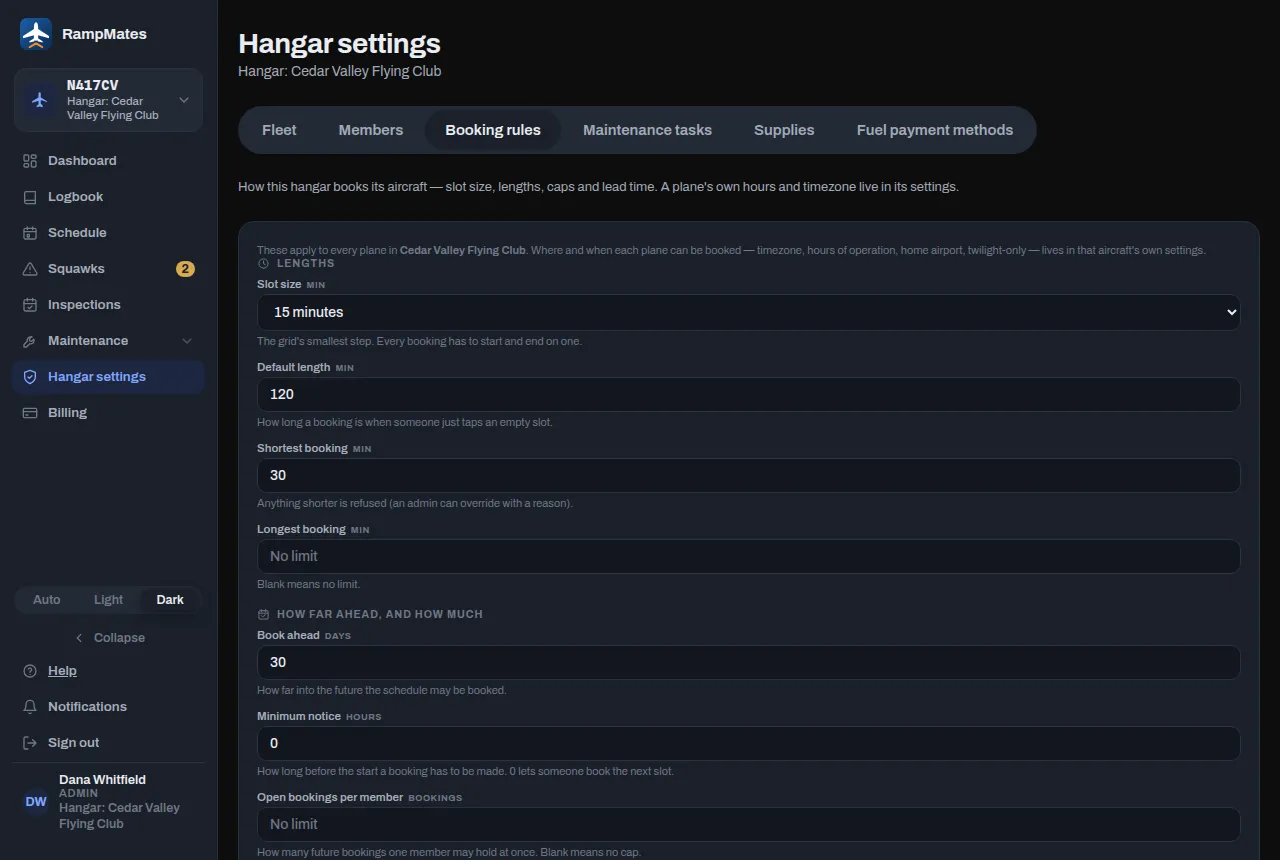
The length, notice and limit rules are checked when a booking is made or changed, so bookings already on the schedule stay as they are. The Dispatch settings apply to every booking as soon as you save.
The rules
Section titled “The rules”Lengths
- Slot size: the smallest step. Every booking starts and ends on one.
- Default length: how long a new booking starts out when someone clicks or taps an empty slot instead of dragging. Standby also books up to this length.
- Shortest booking and Longest booking: leave Longest booking blank for no limit.
How far ahead, and how much
- Book ahead: how many days into the future members can book.
- Minimum notice: how many hours before the start a booking has to be made. 0 lets someone book the next slot.
- Open bookings per member: how many future bookings one member may hold at once, across all the hangar’s aircraft. Blank means no cap.
- Hours per week per member: booked hours in one week, Monday through Sunday, across all the hangar’s aircraft. Blank means no cap.
Dispatch
- Late-cancel window: a flight canceled this close to its start is marked a late cancel.
- No-show after: a flight not checked out this long after its start is marked a no-show, and the pilot is notified.
- Reminder: how many hours before a flight the pilot gets a reminder. 0 turns reminders off.
Schedule
- Operating hours: the part of the day the schedule shows, on the half hour. It doesn’t stop anyone booking; bookings outside it count as overnight and appear with Show overnight on a computer, or All 24 hours on a phone.
- Group aircraft by type: Automatic (large fleets), Always or Never. Grouping lists the aircraft by type, lets a type show as a single column, and lets members book Any C172 (or whichever type) instead of a tail. Automatic thresholds set when Automatic turns it on: the number of aircraft in the fleet, and the number of tails of one type.
- Booking by type: what a booking for Any C172 does. Assign a tail now (schools) picks a free aircraft of that type straight away. Hold the type, dispatch assigns later (clubs) keeps it on the type until a hangar admin assigns one.
What members see when a rule stops them
Section titled “What members see when a rule stops them”| Message | Rule | Can an admin override? |
|---|---|---|
| “Bookings need at least … hours’ notice.” | Minimum notice | Yes |
| “Bookings can’t be made more than … days ahead.” | Book ahead | Yes |
| “Bookings must be at least … minutes long.” | Shortest booking | Yes |
| “Bookings can’t be longer than … minutes.” | Longest booking | Yes |
| “You already have … open reservations, the most allowed.” | Open bookings per member | Yes |
| “This would put you over your …-hour weekly limit.” | Hours per week per member | Yes |
| “Start and end times must land on …-minute slots.” | Slot size | No |
| “This falls outside the hangar’s hours of operation.” | The aircraft’s hours, in Aircraft settings | No |
| “This flight falls outside civil twilight hours.” | The aircraft’s twilight-only setting | Yes |
| “This overlaps a scheduled maintenance block.” | A maintenance block | Yes |
| “This overlaps another reservation.” | Someone else’s booking | No |
| “This booking starts in the past.” | — | No |
To override, a hangar admin types a reason in Override in the New booking box and presses Save, or in Why you’re booking past it in the New reservation panel and presses Override and book. The reason is kept on the booking.
If something goes wrong
Section titled “If something goes wrong”- “… can’t be empty.” Every field except Longest booking, Open bookings per member and Hours per week per member needs a value.
- “Fleet grouping thresholds have to be whole numbers of at least 1.” Fix the two Automatic thresholds boxes.
- You can’t find Booking rules. Only hangar admins see Hangar settings.