
Aircraft settings
For: Hangar admins
adminEach aircraft has its own settings: what a flight in it costs, its fuel and oil numbers, and when it can be booked. Changes apply to everyone who flies it.
Open an aircraft’s settings
Section titled “Open an aircraft’s settings”- Open Hangar settings and choose the Fleet tab. On a phone, press More, then Hangar settings.
- Press the aircraft’s tail number. Aircraft settings opens, with the tail number under the heading.
- Change what you need.
- Press Save aircraft at the bottom. Everything on the page saves together.
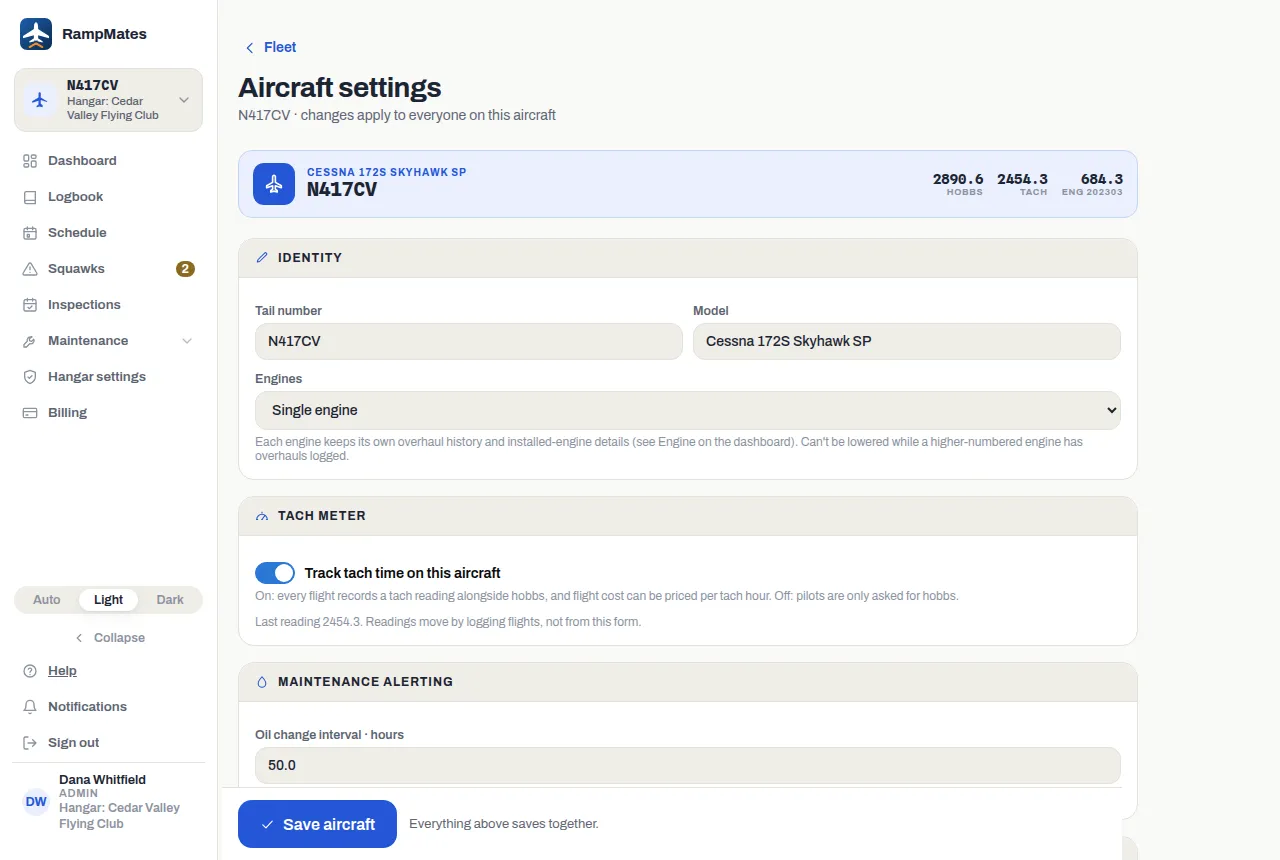
Opening the settings also makes that aircraft the one the rest of the app is about. Fleet at the top takes you back.
Identity
Section titled “Identity”Tail number and Model are what everyone sees in the picker and the schedule.
Engines is Single engine, Twin (left and right), Three engines or Four engines. Each engine keeps its own overhaul history – see Engines and overhauls.
Tach meter
Section titled “Tach meter”Turn on Track tach time on this aircraft if you want every flight to record a tach reading as well as hobbs. When you turn it on, enter Current tach reading – what the meter reads right now. The next flight counts from it, and it’s the only time you can type a tach reading by hand.
Turning it off keeps the tach readings already logged on past flights. Turning it back on later asks for a fresh reading.
See Hobbs and tach.
Maintenance alerting
Section titled “Maintenance alerting”Oil change interval · hours drives the oil meter and the automatic oil squawks. When the aircraft comes within 5 hours of its next oil change, RampMates opens an Oil change coming up squawk; once the interval is used up, an Oil change due squawk takes its place. Leave the box blank to turn this off. See Log an oil change.
- Tank capacity · gal – leave it blank to hide the fuel meter.
- Default price · $/gal – what a gallon costs until fuel purchases with a price have been logged; after that, RampMates prices fuel from what was actually paid. It’s also used for fuel purchases logged without a price.
- Baseline starting fuel · gal – where the fuel meter starts counting from. Leave it blank if you don’t know.
Flight cost
Section titled “Flight cost”Select a Flight cost model:
| Model | A flight costs |
|---|---|
| Fuel only | The fuel it burned, at the going price per gallon. |
| Wet rate · per hobbs hour | Hourly rate × hobbs time. Fuel is included. |
| Wet rate · per tach hour | Hourly rate × tach time. Fuel is included. |
| Dry rate · per hobbs hour, plus fuel | Hourly rate × hobbs time, plus the fuel burned. |
| Dry rate · per tach hour, plus fuel | Hourly rate × tach time, plus the fuel burned. |
Every model except Fuel only needs an Hourly rate · $/hr. While the tach meter is off, the two tach models are grayed out and marked (no tach meter).
Changing the rate or the model doesn’t reprice flights already logged – each flight keeps the rate it was flown at. See What a flight costs and Frozen rates.
Location & hours
Section titled “Location & hours”This section decides when the aircraft can be booked.
- Timezone – the name of the time zone the aircraft lives in, such as
America/Chicago. The hours below are in this time zone. - Home airport – where it’s based. Daylight only uses it to work out twilight.
- Weather station – the station whose weather the schedule shows for this aircraft. Leave it blank and the schedule shows no weather for it.
- Daylight only — warn on bookings outside civil twilight – a flight booking that starts before morning civil twilight or ends after evening civil twilight is refused with “This flight falls outside civil twilight hours.” An admin can still book it by giving a reason. It needs a Home airport: without one, every flight booking on this aircraft gets that message.
Hours of operation
Section titled “Hours of operation”Each day of the week has an opening and closing time, and two boxes:
- Open 24h – no restriction that day.
- Closed – the aircraft can’t be booked at all that day. The row reads Closed all day.
- To close a day – say, Sundays – tick Closed on that day’s row.
- To set hours instead, make sure Open 24h and Closed are both unticked, then set the two times.
- Press Save aircraft.
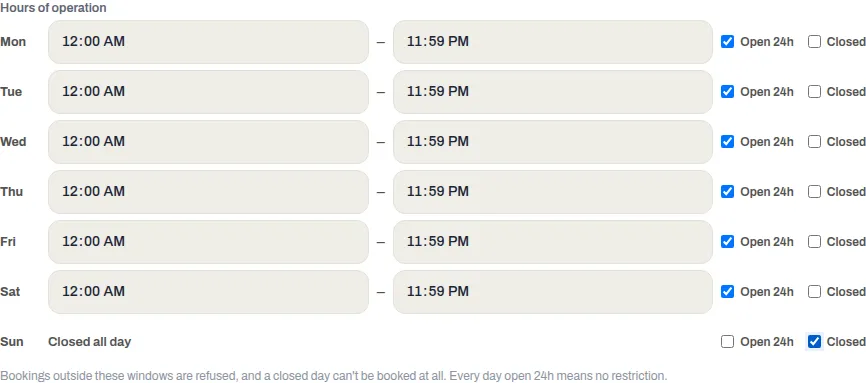
A booking that starts before the day’s opening time or ends after its closing time is refused with “This falls outside the hangar’s hours of operation.” – for admins too, and for maintenance blocks as well as flights. A booking is checked against the day it starts on, so once any day has hours or is closed, a booking can’t run past 11:59 PM. Every day Open 24h means no restriction; that’s how a new aircraft starts.
Bookings already on the schedule aren’t changed when you change the hours. The rest of the booking rules – slot size, how far ahead, how long – are set for the whole hangar; see Booking rules.
If something goes wrong
Section titled “If something goes wrong”- “A wet or dry rate needs an hourly rate” – fill in Hourly rate · $/hr, or select Fuel only.
- “Enter the current tach reading to turn tach tracking on.” – fill in Current tach reading.
- “This aircraft prices flights on tach hours. Change the flight cost model first, then turn tach tracking off.” – select a hobbs model or Fuel only under Flight cost, then turn the tach meter off.
- “Close the open flight first — its tach reading is already part-recorded.” – someone is flying it. Turn the tach meter on or off after their flight is closed.
- “Engine 2 has overhauls logged, so the engine count can’t go below 2.” – an engine you’re removing has overhaul history. Leave the count where it is.
- “Unknown timezone” – type the full name, such as
America/New_YorkorAmerica/Denver, not an abbreviation likeEST. Everything above Location & hours has already saved; fix the timezone and press Save aircraft again. - The tail number isn’t a button on the Fleet list. It’s archived, or you don’t have access to that aircraft yourself. Unarchive it, or give yourself access – see Choose who can fly which aircraft.