
Block an aircraft for maintenance
For: Hangar admins
adminmaintenance block · maintenance hold · down · grounded · mx · out of service
A maintenance block holds an aircraft on the schedule for work. It isn’t anybody’s flight, and while it covers the current time, bookings on that aircraft can’t be checked out.
A hangar admin adds one from the booking panel that Find a time opens:
- On Schedule, press Find a time. Under Planes, leave on only the aircraft you’re blocking, and press Find openings.
- Press Book on any opening.
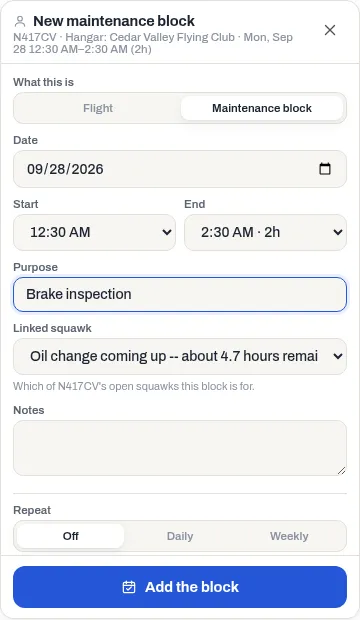
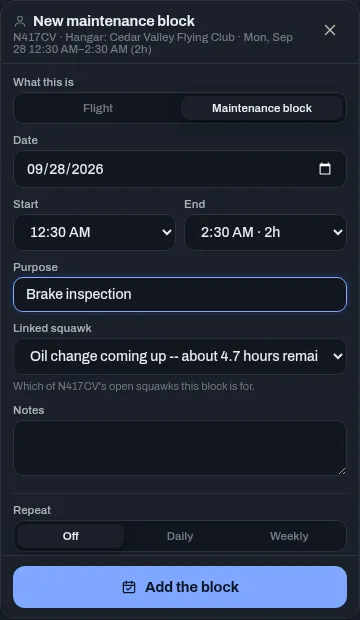
- Under What this is, press Maintenance block. The panel becomes New maintenance block.
- Set Date, Start and End to the time the aircraft will be down. A block can cover time that’s already booked.
- Type what the work is under Purpose. It’s the title the block shows on the schedule.
- If the work is for one of the aircraft’s open squawks, choose it under Linked squawk.
- Press Add the block.
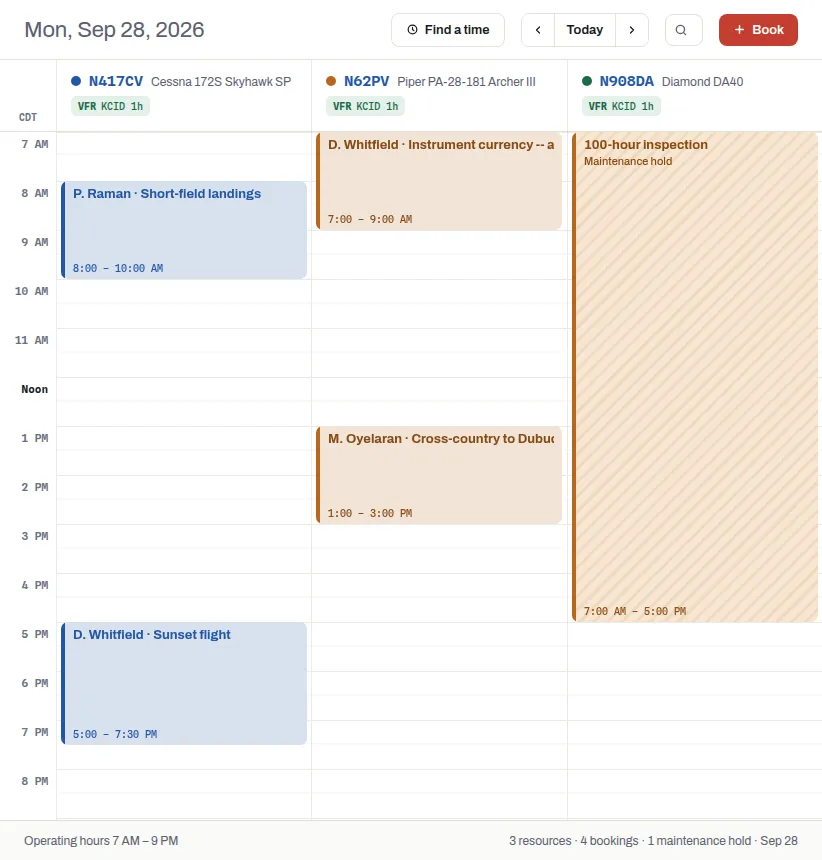
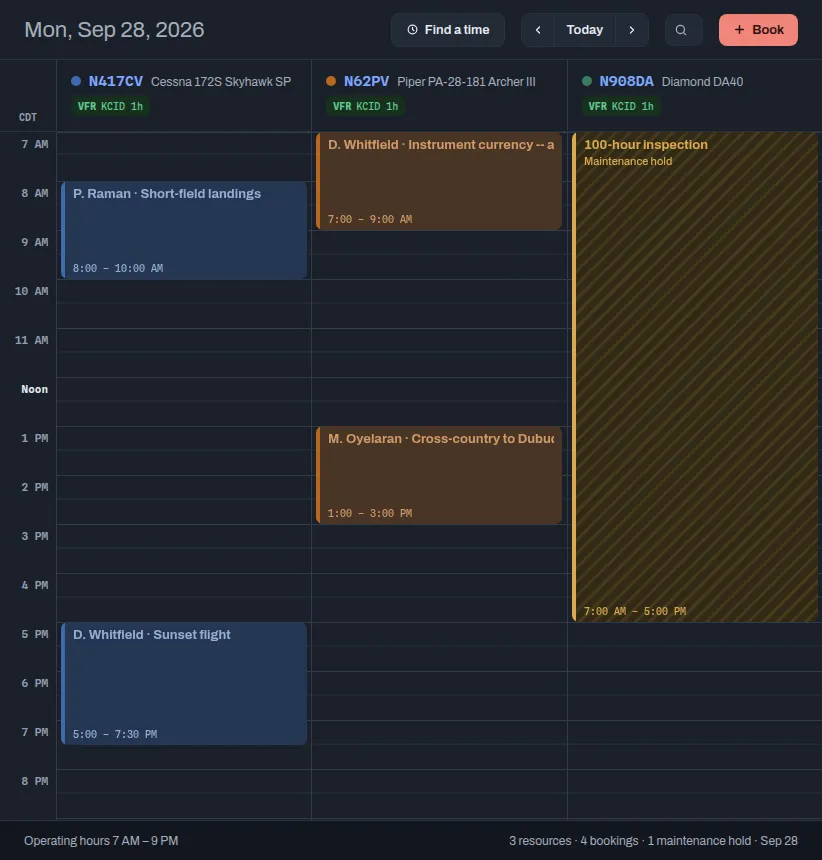
On the schedule the block is an orange hatched strip marked Maintenance hold. While a block is in progress, today’s schedule shows MX until and the time it ends in the aircraft’s header, or DOWN, with the whole column hatched, if it runs past the hours the schedule is showing.
What it does to bookings
Section titled “What it does to bookings”- Bookings already in that time are not canceled. Each pilot is told that maintenance was scheduled over their reservation, by you, so you can sort out between you which one moves.
- A new booking over the block is refused with “This overlaps a scheduled maintenance block.” A hangar admin can book past it with a reason.
- While the block covers the current time, Check out on a booking is refused with “The aircraft is under a maintenance block right now.”
The hangar’s notice, book-ahead, length and per-member limits don’t apply to a block, but it still has to fit the aircraft’s hours of operation.
If something goes wrong
Section titled “If something goes wrong”- “This booking starts in the past.” A block has to start from now on.
- “This falls outside the hangar’s hours of operation.” The block runs past the aircraft’s hours for that day, or the aircraft is closed that day. End it at closing time, and add another block for the next open day if the work continues.
- No opening listed for the aircraft. Find a time only lists time that’s free for a flight. Search a later range, then change Date, Start and End in the panel; the block can go anywhere from now on.